Introduction
The way software is written is undergoing a fundamental transformation. With increasingly complex large models, anyone can program, and everyone is a programmer. AI collaborative programming, informally referred to as “Vibe Coding,” represents the next stage—where intention, creativity, and system intelligence work together to directly convert ideas into runnable programs.
Previously, capable coding models belonged to the realm of cloud terminals, but in recent months, models specifically designed for tool invocation, MCP, and coding capabilities have emerged. With tools like LM Studio, Cline, and Microsoft VS Code, you can start Vibe Coding in just a few minutes. From now on, you just need to prompt your computer and let AI write the code for you.
Running Vibe Coding locally on AMD hardware has unique advantages. By processing everything on your device, sensitive code and data remain on your machine. Local execution also saves ongoing cloud costs, allowing you to scale experiments without worrying about expenses. This combination of advantages makes the AMD Ryzen AI and Radeon platform an ideal foundation for practical, everyday Vibe Coding.
AMD Ryzen AI Max+ 395 Platform
Particularly, the AMD Ryzen AI Max+ 395 (128GB) platform is the best Windows AI PC processor for local AI programming, unlocking the ability to run cutting-edge models on Windows, such as GLM 4.5 Air (with a total of 106 billion parameters).
Cline is an open-source AI programming bot that can be integrated into Microsoft Visual Studio Code and can access various MCP tools while complying with SOC2 and GDPR standards. It is one of the most popular tools among Vibe Coding users and advanced developers. Supported by LLM providers, Cline allows large models to utilize the Microsoft VS Code GUI and can even read and write files and folders on your computer. When equipped with powerful programming models like Qwen3-Coder 30B A3B or GLM 4.5 Air, it excels in autonomous programming tasks and AI pair programming.
How to Use Cline, LM Studio, and Microsoft VS Code for Vibe Coding on AMD Hardware
-
Install the latest version of AMD software: Adrenalin Edition 25.9.1 or higher for the latest llama.cpp support. For commercial customers, such as HP ZBook Ultra G1a or HP Z2 Mini G1a, download AMD Software: PRO Edition 25.Q3 or higher. Note: Using older drivers may prevent models from loading or result in poor performance. Driver download link:
AMD Driver Download -
AMD Radeon and Radeon PRO graphics card users can skip this section and go directly to step 3. If you are using the AMD Ryzen AI platform, set the AMD Variable Graphics Memory (VGM) to the correct configuration. You can access the VGM control panel by right-clicking on the desktop > AMD Software: Adrenalin Edition > Performance > Adjust. If you are using the AMD Ryzen AI PRO platform, restart to BIOS and set the dedicated graphics memory from there, then restart the system.
-
Download and install LM Studio and skip the onboarding. Download link:
LM Studio Download -
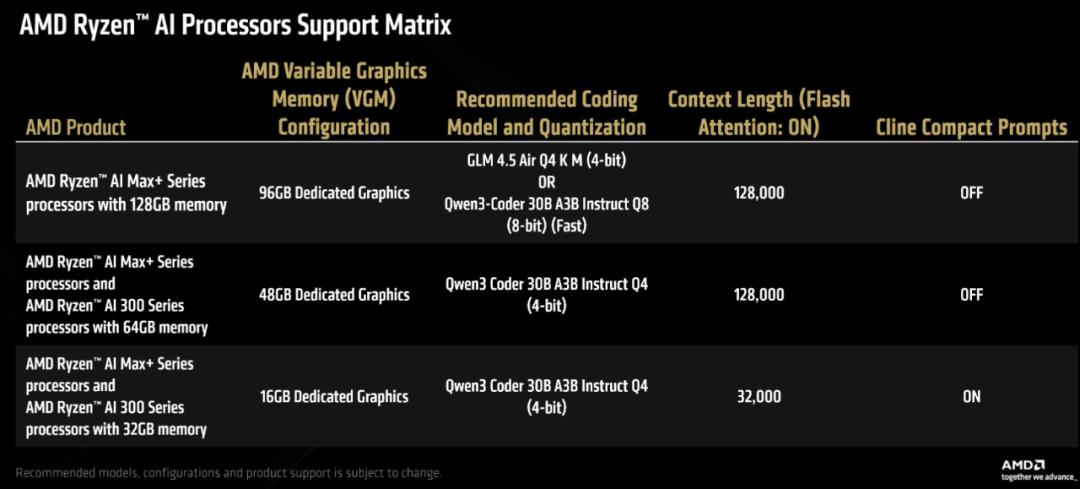
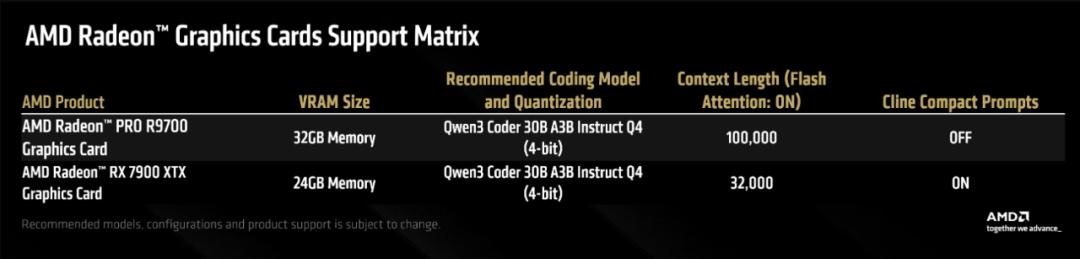
Go to the search tab (magnifying glass icon) and find the correct model using the product support matrix provided below. We recommend selecting “LM Studio Community models” as the model provider. You can choose the model’s quantization method by clicking the “Download Options” dropdown menu on the right after selecting the model on the left.
-
Click the server tab (command line icon).
-
Click the dropdown menu at the top. Check “Manually select parameters” and click load. Check “Show advanced settings”.
-
Refer to the product support matrix table below to set the context length. Check Flash Attention; this step is crucial because without it, high context cannot load in llama.cpp. Check “Remember settings”.
-
Click load. Minimize the LM Studio window (do not close it).
-
Download and install Git for Windows. Download link:
Git for Windows Download -
Download and install VS Code for Windows. Download link:
VS Code Download -
Go to the Cline website and click to install Cline for VS Code. Download link:
Cline for VS Code Download -
In LLM providers, select “LM Studio”.
-
In VS Code, click the Cline icon on the right, then click settings (gear icon). Under Plan Mode and Action Mode (API Configuration), ensure it is set to the model downloaded in LM Studio, such as Qwen 3 Coder.
-
Without exiting the Cline settings context menu, now click “Terminal Settings” (on the left)—this is a command line icon. Change the “Default Terminal Configuration” dropdown menu to “Git Bash”.
-
Click “Finish” to close Cline settings and save. Use the example prompts provided below to start a new “Plan” task. Once you receive a response from Cline.bot, switch the toggle to “Action” mode, and it will start working!
Conclusion
This concludes the setup tutorial. If you have any questions, you can refer to the two images above, which provide AMD’s official pairing recommendations. If you have further inquiries, feel free to leave a message for discussion.
Comments
Discussion is powered by Giscus (GitHub Discussions). Add
repo,repoID,category, andcategoryIDunder[params.comments.giscus]inhugo.tomlusing the values from the Giscus setup tool.